 Text Tools
 Image Tools
 CSS Tools
 Coding Tools
 Color Tools
 Social Media Tools
 Miscellaneous Tools
 Add to Chrome
 Add to Firefox
Drag your file here, or click to browse
* PDF, DOCX and Image Files (JPEG, PNG, WEBP, GIF) are supported.
Scanner Settings
Rotation: 1°
Brightness: 1
Contrast: 1
Scale: 1
Blur: 0.25px
Noise: 0.5
Original Document
Upload a document to see preview
Scanned Output
Upload a document to see preview
Similar Image Tools
See All


What is Online Scanned PDF Converter?
Scanned PDF Converter is a free online tool that makes your digital documents look like they have been physically scanned. You upload a PDF, Word document, or image file, and the tool applies effects like slight rotation, brightness changes, blur, and noise to make it look like you put a paper through a real scanner. It is useful when someone asks you to "scan and send" a document but you don't have a scanner nearby (or don't want to bother with one).
The tool supports PDF files, Microsoft Word (.docx) documents, and image files like JPEG, PNG, WEBP, and GIF. For Word documents, they get converted to PDF first to keep the layout intact. Everything else is processed right in your browser, so your files don't get uploaded to any server.
You might be wondering why anyone would need this. Well, some institutions and processes still specifically ask for "scanned" versions of documents. Maybe it is a signed contract, a form you filled out, or an ID document. If you already have the digital version, running it through a physical scanner just to make it look scanned is a waste of time. This tool skips that step entirely.
There is a live preview so you can see how the document will look before downloading. You can tweak the settings until it looks right — some people want a barely noticeable scan effect, others want it to look like it came out of a really old office scanner. Both are possible.
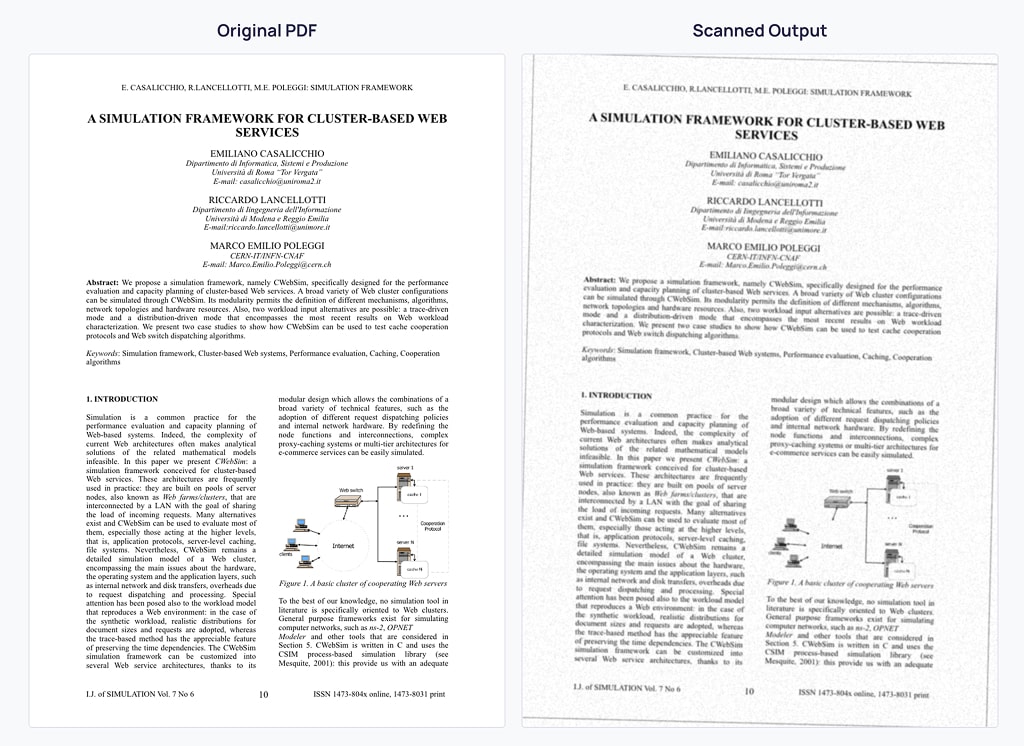
Scanned PDF Converter Before and After
Tips for Getting a Realistic Result
If you want the most realistic scanned look, don't overdo the settings. Real scanners produce subtle imperfections, not dramatic ones. Here is what works well:
- Rotation: Keep it between 1 and 3 degrees. Real papers are slightly misaligned on the scanner glass, but not by much.
- Brightness: Something around 1.1 to 1.3 works well. Scanned documents tend to look a bit washed out.
- Blur: A very small value like 0.2 to 0.4 is enough. Scanners are not perfect but they are not terrible either.
- Border: Turn this on. It adds a subtle shadow around the edges that scanners naturally produce because the paper doesn't sit perfectly flat.
When processing multi-page documents, each page gets a slightly different random rotation (within ± 0.5 degrees of your setting) so it looks like each page was placed on the scanner separately. This is a small detail but it makes a big difference.
Privacy
All processing happens in your browser. Your files are not uploaded to any server. The only exception is Word (.docx) files — those need to be converted to PDF first, but even that conversion does not store your files anywhere. If you are dealing with sensitive documents, you can convert them to PDF yourself first and then upload the PDF version.
How to use Online Scanned PDF Converter?
Making your documents look scanned is pretty straightforward.
- Upload your file by dragging it into the drop area or browsing from your device. PDF, DOCX, JPEG, PNG, WEBP, and GIF are supported.
- Adjust the settings. Rotation adds a slight tilt, brightness changes how light or dark it looks, blur simulates scanner resolution, and border adds edge shadows.
- Check the live preview to see if it looks right. Adjust settings if needed.
- Click the download button to save your scanned-looking PDF or PNG.
The whole process usually takes a few seconds per page. For very large files it might take a bit longer depending on your device.