 Text Tools
 Image Tools
 PDF Tools
 Social Media Tools
 Security Tools
 Coding Tools
 CSS Tools
 Color Tools
 Miscellaneous Tools
 Add to Chrome
 Add to Firefox
Shows your image as an open pin in the Pinterest app, with title, creator and Save button, and exports it as an iPhone screenshot.
Pin
Creator
Engagement
App Screen
What is Online Pinterest Post Generator?
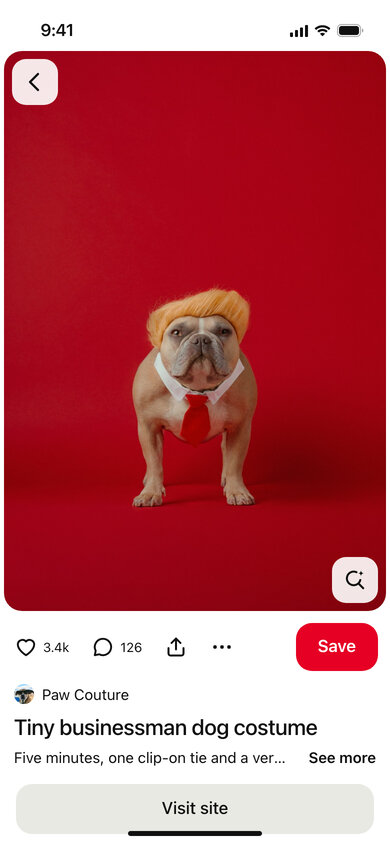
Pinterest Post Generator is a free mockup tool for Pinterest pins, drawn the way a pin opens in the Pinterest app on a phone. Your image fills the width of the screen just below the status bar, with the back button and the visual search button on its corners. Underneath come the reaction and comment counts, the share and menu buttons, the red Save button, the creator, the pin title, a line of description with "See more", the full-width "Visit site" button and the "More to explore" feed.
Pinterest is a visual search engine, so the image and the first words of the title decide whether a pin gets saved. A mockup lets bloggers, shops and social media managers check that before publishing: does the text on the image read at phone size, is the title cut off, does the pin look right next to similar ones? It is equally useful for client presentations, portfolio case studies and course material about Pinterest marketing.
Everything Under the Pin
- Reactions and comments — free-text counts such as "1.2k" next to the heart and speech bubble; tick "Reacted by You" for a filled red heart.
- Save or Saved — the red Save button, or the black Saved state once a pin is on one of your boards.
- Visit site — add a link and the wide grey "Visit site" button appears under the pin details, as on pins that lead to a website.
- Creator — the small profile photo and name shown above the title.
- More to explore — upload a few related images to fill the two-column feed below the pin.
How to use Online Pinterest Post Generator?
- Upload the pin image and write the title and description; add a link if the pin should lead somewhere.
- Enter the creator name and upload their photo.
- Set the reaction and comment counts and choose whether the pin is reacted to or saved.
- Optionally upload images for "More to explore", then pick light or dark mode.
- Click "Export Screenshot" to download the JPG or copy it.
Frequently asked questions
What image size works best for a pin?
Pinterest recommends a 2:3 portrait image, for example 1000 × 1500 pixels. In the mockup the image spans the full width of the phone and is shown up to 560 points tall; taller images are cropped, while square and landscape images are shown whole and leave room for the "More to explore" feed.
Can I leave the title empty?
Yes. Many pins have only a description, and an empty title, description, link, reaction count or comment count is simply left out of the screenshot.
Is there a dark mode?
Yes. Switch the theme to Dark for Pinterest's black background; the Saved button and the Visit site button change with it, as in the app.
What size is the screenshot?
The phone screen is 390 × 844 points and the JPG is exported at 2×, 780 × 1688 pixels — the same shape as a screenshot from a modern iPhone.
Usage Policy
By using Pinterest Post Generator by 10015.io you agree not to present invented reaction, comment or save numbers as real results to clients or sponsors, not to imitate a real creator or brand to mislead people, and not to use other people's images without the right to do so. Pin previews, design reviews, teaching and fun are what it is for. The tool is not affiliated with Pinterest, and 10015.io is not responsible for how the images are used.